How to Change the Email on a Shopify Order (Before Tracking Goes Missing)
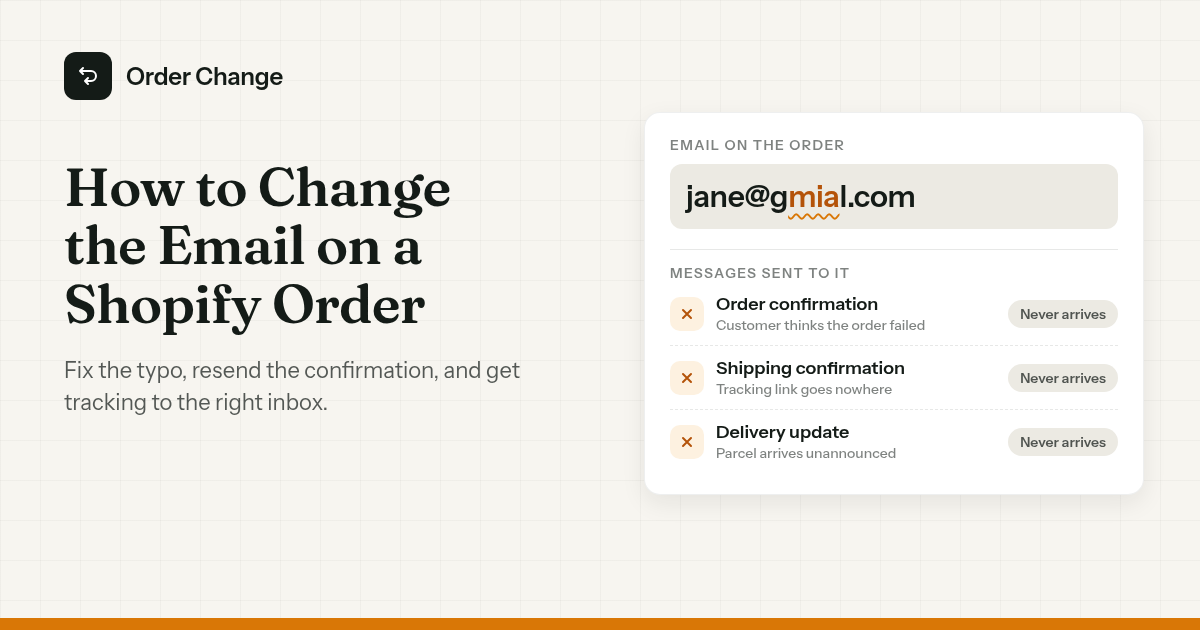
A ticket lands at 11:40 on a Tuesday. "I ordered a jacket on Saturday and never got a confirmation. Did it go through?"
It came from jane@gmail.com. No orders under that address.
You search her name instead. There it is, placed Saturday at 21:06. The email on the order reads jane@gmial.com.
And a second order, Sunday morning. Same jacket. She thought the first one failed.
The order was fine the whole time. Payment captured, label printed yesterday. Every message about it went to a mailbox that doesn't exist.
The short version. In Shopify admin, go to Orders, open the order, and in the Customer section use Edit contact information to fix the email or phone, then click Save. Then scroll to the Timeline, click Resend email under the order confirmation, and send it to the customer.
The rest of this guide covers those steps on desktop and mobile, when to tick Update customer profile, what you can't resend, and how to catch the typo before the tracking email goes nowhere.
How to change the email on a Shopify order
Shopify lets you change the contact information on an order after it's placed. Shopify Help puts it plainly: "You can update the email address or phone number on an order without changing the customer's profile, or you can save the new information to the customer's profile at the same time."
On desktop
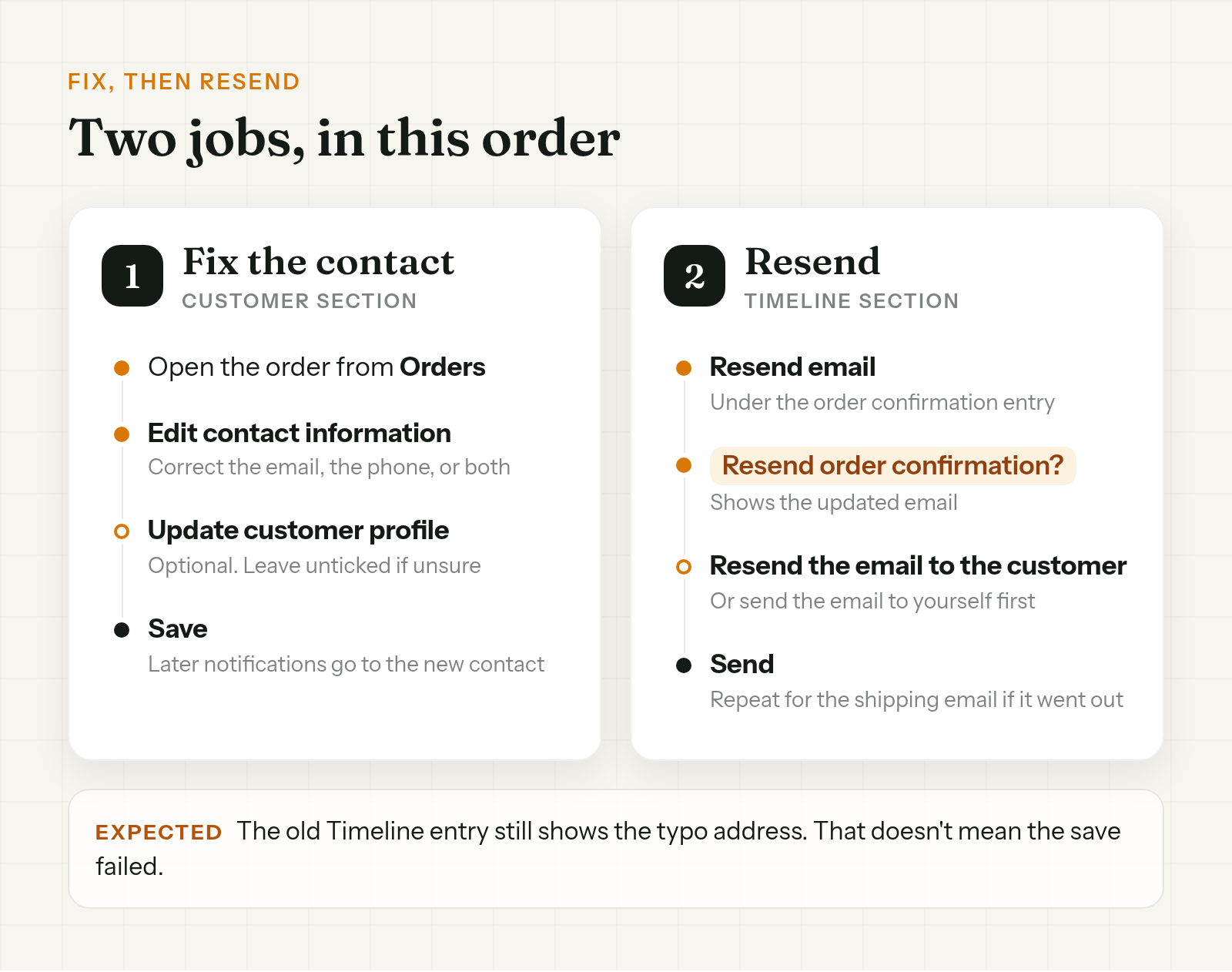
- In Shopify admin, go to Orders and click the order.
- In the order's Customer section, open the contact edit (Shopify calls it Edit contact information; on some admins it's an Edit link in the Contact block).
- Correct the email, the phone, or both.
- Leave Update customer profile unticked unless you've checked the profile first (next section).
- Click Save.
On mobile
Same flow in the Shopify app. Open the order, tap the menu icon in the Customer section, then Edit contact information. Fix the fields and tap Save.
Before you save, read the new address back to the customer. Letter by letter if you're on the phone. Fixing gmial into gmai is still a typo.
The shipping address sits in the same Customer section. If she got the street number wrong as well, fix both while you're there. The address edit has its own traps (printed labels, 3PL syncs), covered in how to change a shipping address on Shopify after an order.
What changes once you save: later order notifications, such as the shipping and delivery emails, go to the new contact. Messages already sent stay where they went. That's what the resend step is for.
What breaks when the email is wrong
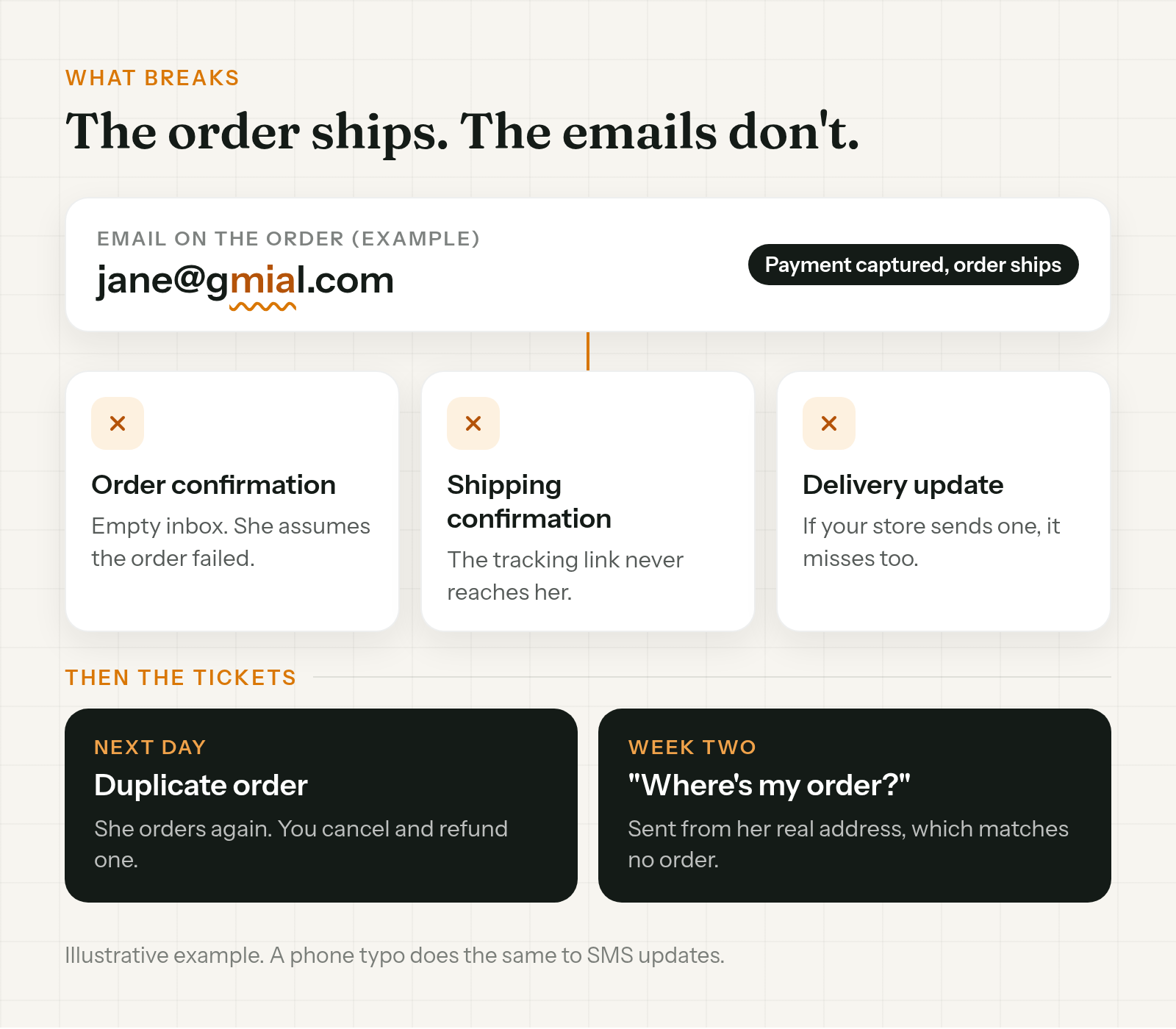
The order itself is fine. Payment goes through and the warehouse ships it.
What breaks is every message after checkout.
- Order confirmation. Goes to
jane@gmial.com. Her inbox stays empty and she assumes the order failed. Some order again, and now you have a duplicate to cancel and refund. - Shipping confirmation. The one with the tracking link. Also gone. She has no idea it shipped.
- Delivery update. If your store sends one, it misses too. The parcel turns up with nobody expecting it, or sits in a locker she never heard about.
- SMS updates. Same story with a phone typo, if the store uses SMS notifications. One wrong digit and the texts go to a stranger or nowhere.
Then come the tickets.
"Where's my order" lands in week two. It arrives from her real address, which doesn't match the order, so the agent has to hunt by name or shipping address before they can answer anything. Leave it long enough and some customers skip support and go to their bank.
None of this shows up as an error on the order. That's why it gets found late.
How to spot a wrong email fast
When a customer entered the wrong email, they usually find out days later. You can find it sooner.
- "Didn't get my confirmation" tickets. The classic tell. Ask for the order number or the name on the order, then check the email on it before anything else.
- A ticket from an address with no orders. Search by name, phone, or shipping address. An order under a near-identical email is your typo.
- Two orders, same name, same address, close together. Often a customer who never saw the first confirmation. Check the email on the first one before you cancel either.
- Bounces. Easy to miss unless someone checks. If your email setup reports failed deliveries anywhere, give someone the job of looking, even once a day.
- Obvious typos on new orders. A quick scan of today's orders catches a lot.
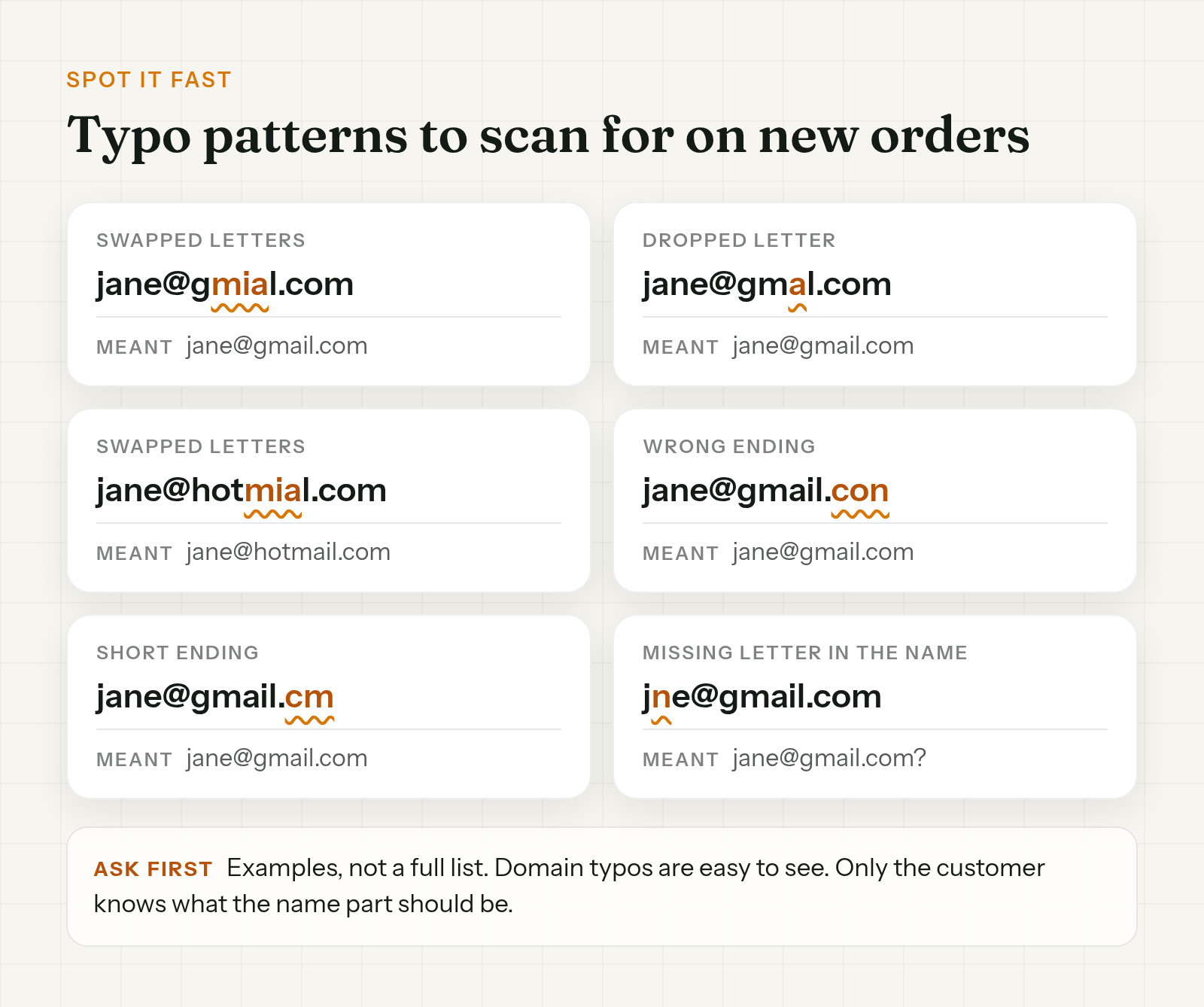
The patterns repeat. gmial.com, gmal.com, hotmial.com. A .con or .cm where .com should be. A letter missing from a well-known domain. These are examples to scan for, not a complete list.
The part before the @ is harder. Only the customer knows whether jne@ was meant to be jane@. If the domain looks right and the name looks odd, ask. Don't guess.
Update customer profile: when to tick it and when not to
The checkbox decides one thing. Does the fix stay on this order, or also go onto the customer's profile?
Tick it when:
- The profile has the same typo. On a first order it usually does.
- You've confirmed the new address with the customer, not just guessed the fix.
Leave it unticked when:
- The customer wants this one order's emails to go somewhere else (a work inbox, a gift) and the profile is fine as it is.
- The corrected email might already belong to another customer profile. Shopify staff answers in Shopify Community note that ticking Update customer profile in that case can throw a duplicate email error. Save the order without it, and sort the profiles out separately.
- You're not sure. Either way, the order carries the new contact once you save.
Resend the order confirmation to the new email
Fixing the email doesn't resend anything. The resend lives on the order Timeline.
- In Orders, open the order.
- Scroll to the Timeline section.
- Find the order confirmation entry and click Resend email under it.
- The Resend order confirmation? dialog opens. Choose Resend the email to the customer. (Send the email to yourself is there if you want to see it first.)
- Click Send.
One thing that looks wrong but isn't. Shopify staff answers in Shopify Community explain that after you edit the contact info, the resend dialog shows the updated email, while the original Timeline entry still shows the old address. That's expected. Your save didn't fail.
The same Resend email link sits under other emails on the Timeline. If the shipping confirmation already went to the typo, resend that one too. It carries the tracking link, and it's the email that heads off the "where's my order" ticket.
Then reply to the ticket. Keep it short:
"Found it. The email on your order had a typo (gmial). I've fixed it and resent your confirmation and tracking. Anything else from us will reach you here."
If she placed a second order thinking the first one failed, ask which to keep before you cancel anything.
When there's nothing to resend (phone-only checkout, SMS)
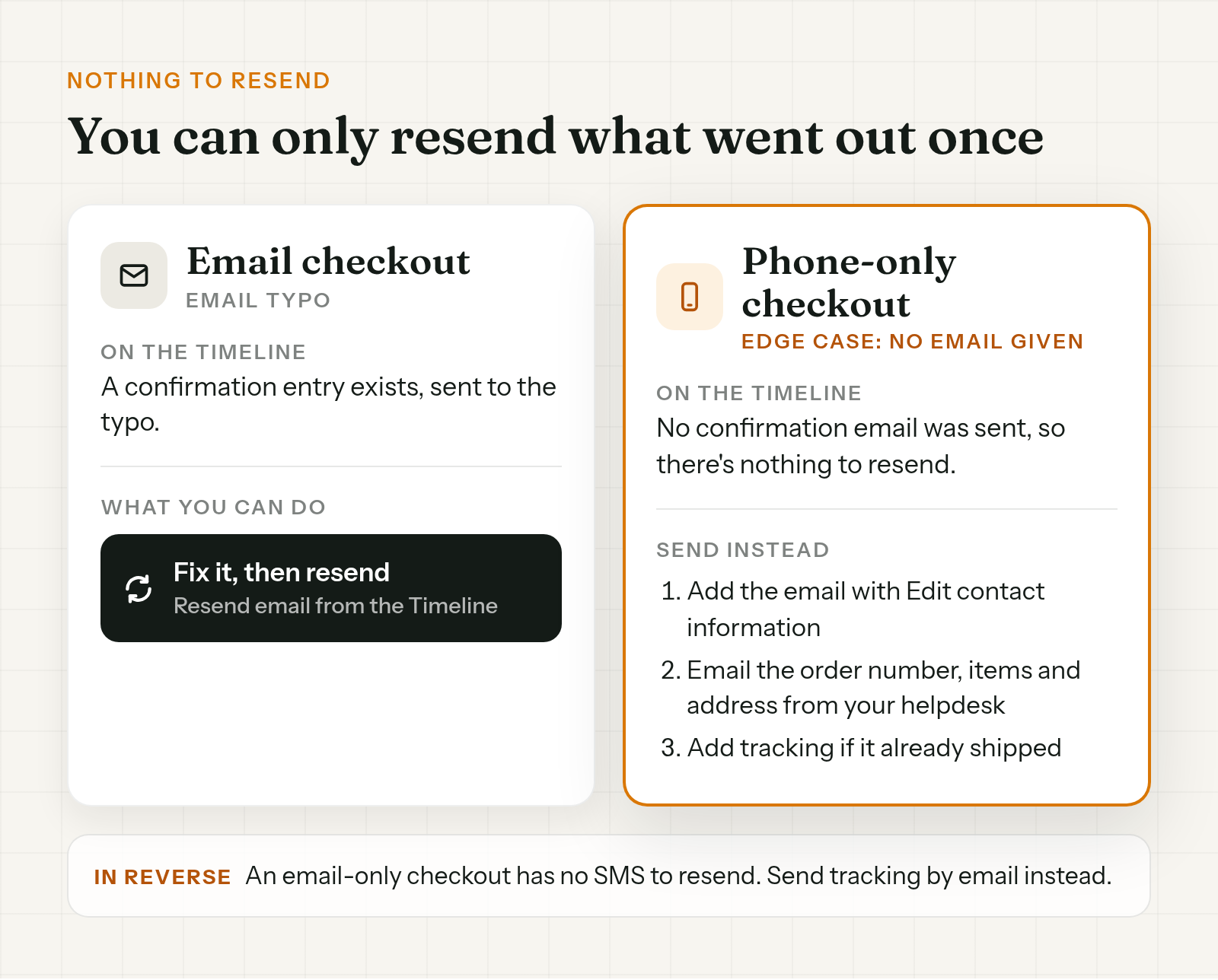
You can only resend an email that was sent in the first place. Shopify Community answers make the point directly. If the customer checked out with a phone number only, no confirmation email ever went out, so there's no Resend email entry to click.
It works the same in reverse. A customer who checked out with an email and no phone has no SMS to resend.
What to do instead:
- Add the email or phone to the order with Edit contact information. Later order notifications go to the new contact from then on.
- Send the missing details yourself. A plain email from your helpdesk with the order number, what they bought, and where it's going. Not a fake confirmation. Just the facts they'd have read in one.
- If it already shipped, put the carrier and tracking link in that same email.
- For a phone typo with SMS updates, fix the number the same way. Texts already sent to the wrong number are gone, so send tracking by email if you have one.
Billing address can't be edited
Shopify Help is clear on this. After an order is placed you can update the shipping address, the contact information, and which customer the order is linked to. You can't edit the billing address.
What that means on a ticket:
- Email and phone fixes don't touch billing. They're separate fields, so you can correct the contact without worrying about the payment side.
- If the customer wants a different billing address on a receipt or invoice, the order won't change. Note it on the order and handle the paperwork outside Shopify, or if it really matters to them, cancel and let them reorder.
- "Wrong address on my order" often means the delivery address. Ask which one. The shipping address can change, and the steps are in changing a shipping address on Shopify after an order.
Let customers fix their own contact details
Every fix above starts with someone on your team noticing. Usually the customer notices first, and all she can do is open a ticket.
Order Change lets shoppers change their own email and phone on the order ("Change contact information"), so the fix doesn't wait in the queue. It's on by default, and you can switch it off if you'd rather handle contact changes yourself.
Where they do it matters:
- On the Order Status page, with Shopify's new customer accounts.
- Not on the Thank You page. That page points them to Order Status after they sign in.
After the edit, later Shopify order notifications, such as shipping and delivery, go to the new contact. Update customer profile doesn't gate that.
One catch with a typo in the email itself. New customer accounts sign shoppers in with a code sent to the email on the order. If that email is misspelled, the code goes to the typo and the shopper can't get in to fix it. Self-serve does the most for phone typos and for shoppers switching to a different address they can still read. A misspelled email still ends up with your team, which is why the spotting habits above matter.
One caveat for your help docs. Third-party tools such as Klaviyo may keep their own cached address. The app only updates the contact on the Shopify order, so if your post-purchase flows run through another tool, check where that tool reads the email from.
It also doesn't resend a confirmation that already went to the typo. If the customer needs it, that's still the Timeline step above.
The same self-serve edits cover address fixes and cancels, and there's an optional fulfillment hold for the edit window (off by default). For sizing that window, see how to hold fulfillment on Shopify during order edits. More at orderchange.com.
FAQ
Can I change the email on a Shopify order?
Yes. Open the order, and in the Customer section use Edit contact information. Fix the email or phone, then click Save.
Will the customer get emails at the new address?
Later order notifications, such as shipping and delivery, go to the new contact. Emails already sent stay sent, so resend them from the Timeline.
Can I resend the order confirmation?
Yes. On the order Timeline, click Resend email under the confirmation, choose Resend the email to the customer, then Send. You can only resend an email that was sent the first time.
Does it change the customer profile?
Only if you tick Update customer profile. Leave it unticked if the new email may already belong to another profile.
Can I edit the billing address on a Shopify order?
No. Shopify lets you edit the shipping address and contact information after an order is placed, but not the billing address.
Can customers change their own email?
Partly. The app at orderchange.com lets shoppers change their email and phone on the Order Status page with new customer accounts, not on the Thank You page. Signing in needs a code sent to the email on the order, so a misspelled email usually still needs your team. Tools like Klaviyo may keep their own cached address.
To change the email on a Shopify order, fix it in the Customer section with Edit contact information, then resend the confirmation and any shipping email from the Timeline. If nothing was sent the first time, add the contact and send the details yourself. And scan new orders for gmial before the tracking email goes nowhere.
For teams that want customers to fix their own contact details, see orderchange.com.
Related: change shipping address
The address is the sibling edit, in the same Customer section of the order. For the full path, from admin edit to label voids, see Change shipping address on Shopify after an order.
Related: hold fulfillment
Contact fixes don't race the warehouse. Address fixes do. To keep orders from shipping while customers make changes, see Hold fulfillment on Shopify during order edits.